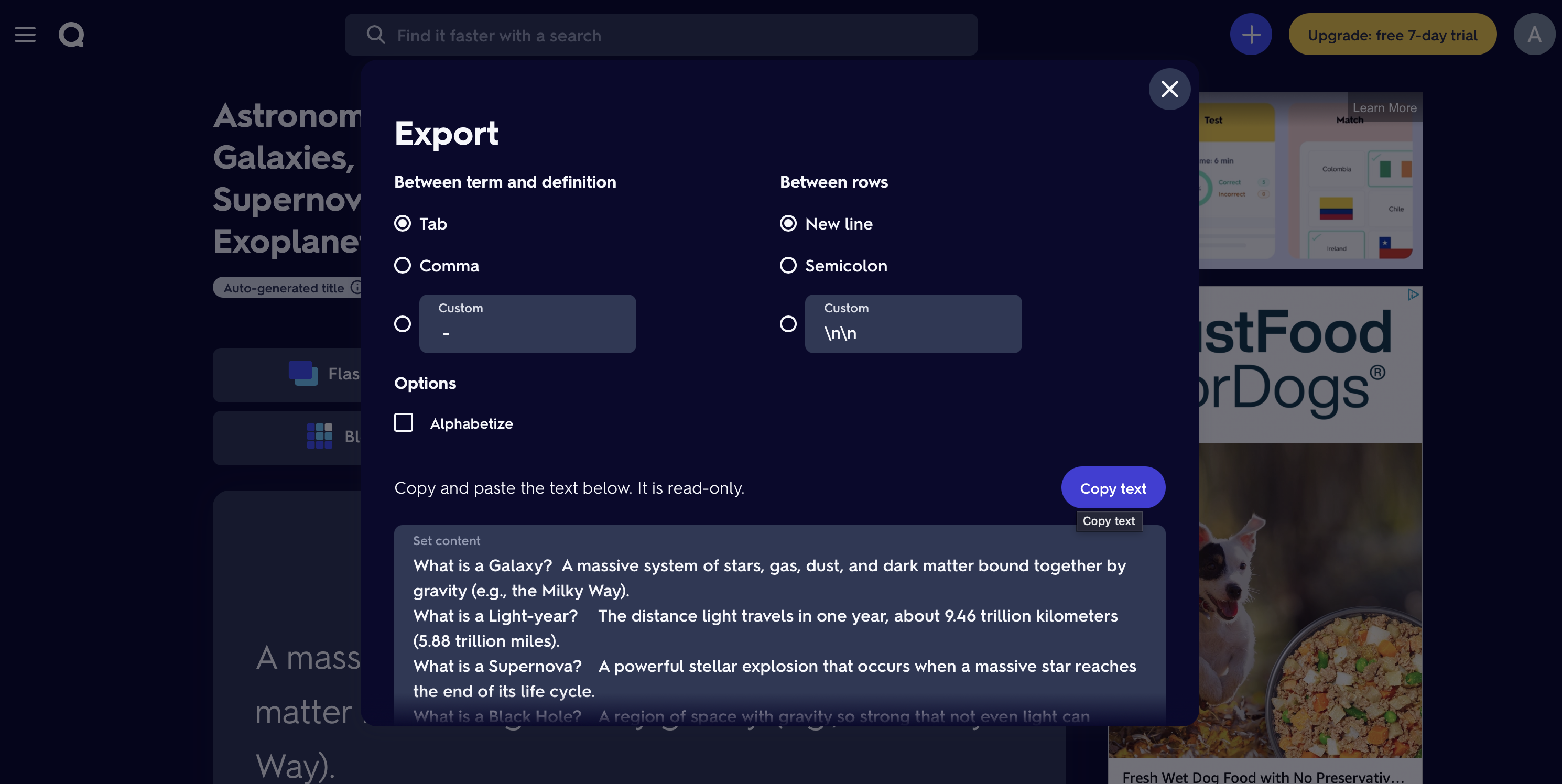
Importing and Uploading Content
1. Importing Notes from Another Platform
Bulk Import lets you quickly upload multiple files from your computer and convert them into individual Lurna documents - perfect for migrating notes from Notion, Google Docs, Obsidian, or other note-taking apps.
How it works:
- Export your notes from your current note-taking platform into markdown (.md, .mdx) or HTML files
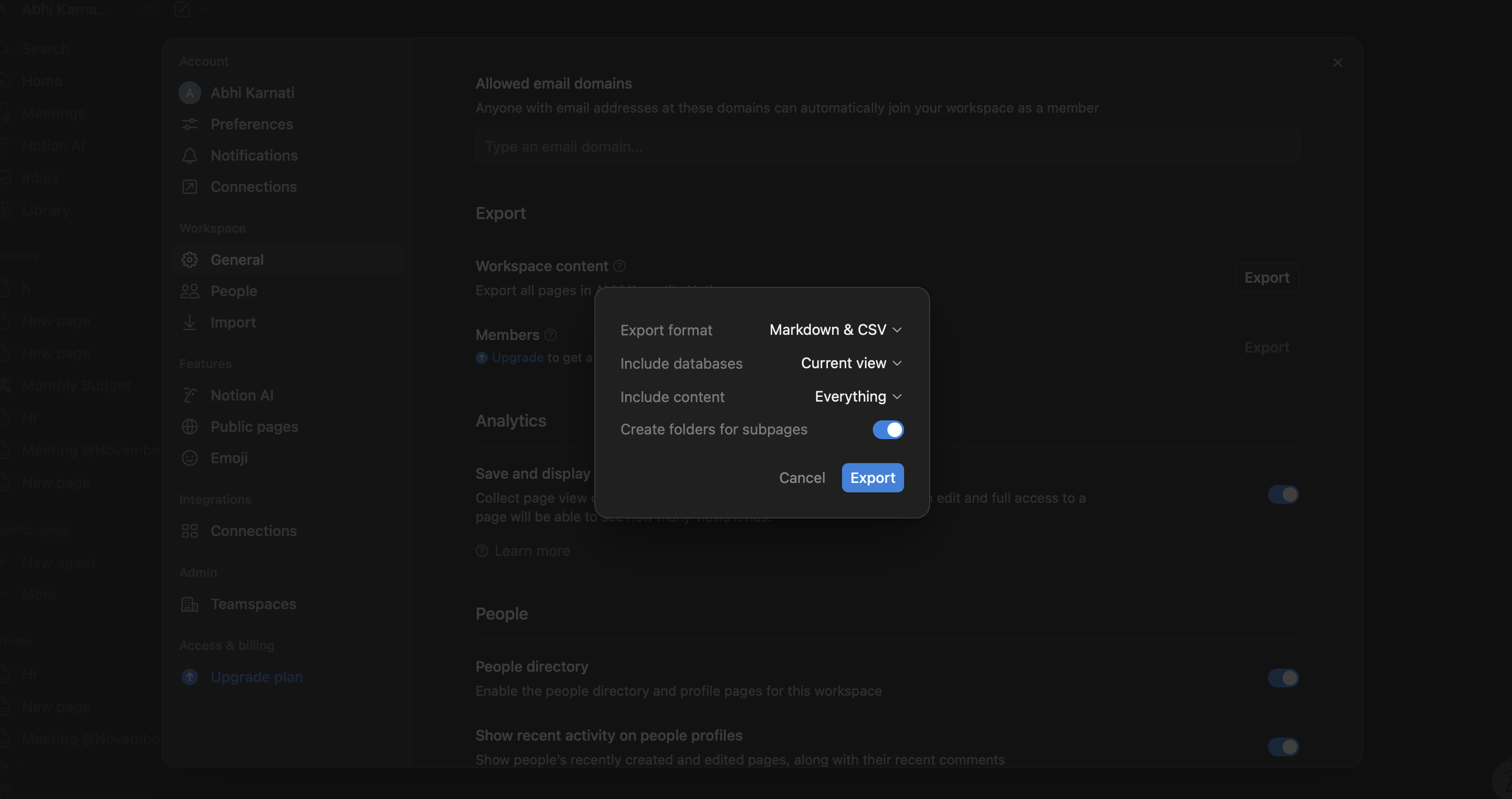
*\*Example Workspace Export from Notion*
- Under settings and in the "Account" tab, click on "Bulk Import"
- Select multiple markdown (.md, .mdx) or HTML files from your computer
- Choose which course to import them into
- Each file becomes its own separate document in that course
- Lurna automatically extracts and formats the text for AI generation
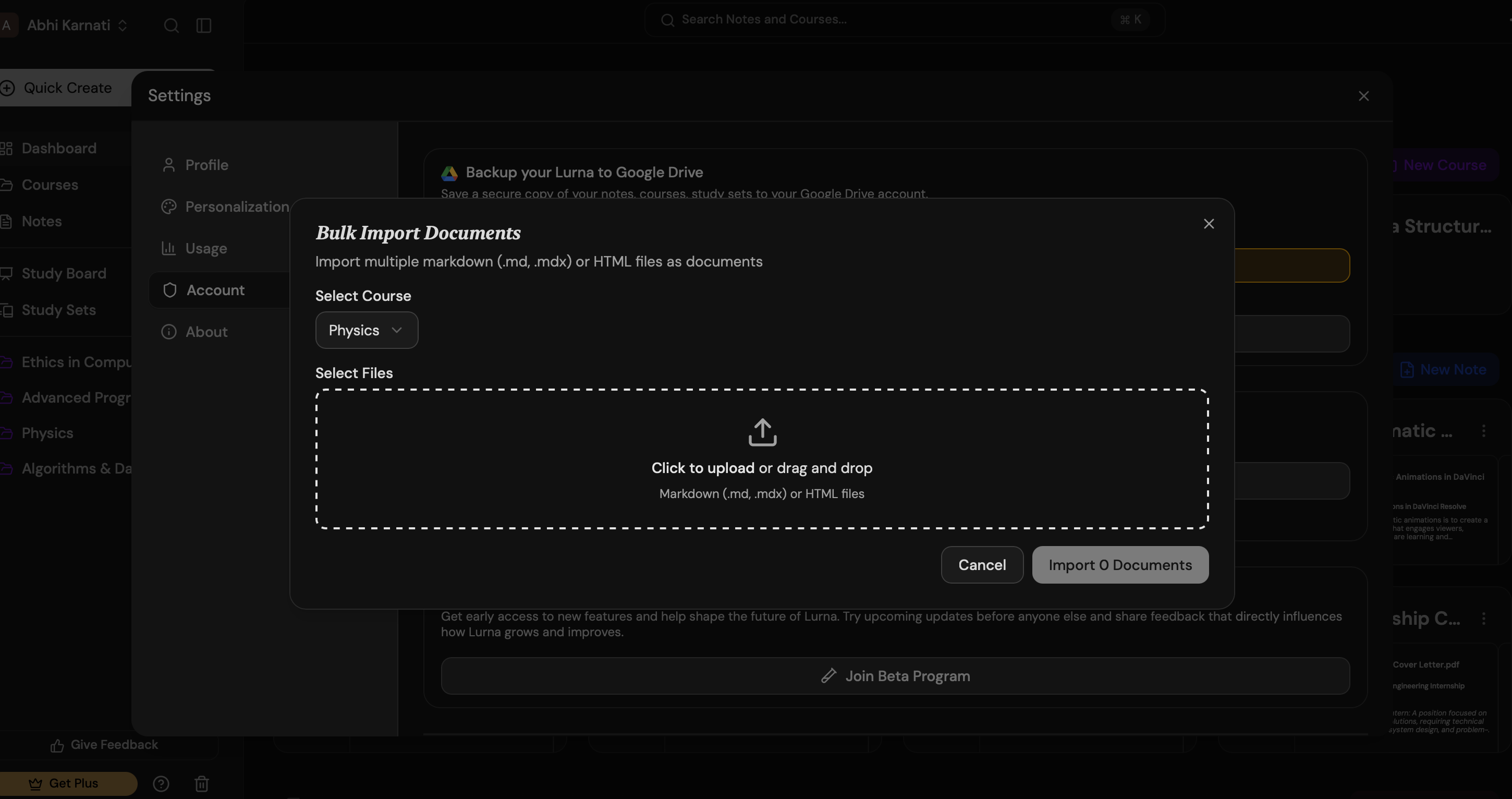
Supported formats:
- Markdown files (.md, .mdx)
- HTML files (.html)
Best practices:
- Organize files by course before importing - all files go into one course at a time
- Use clear, descriptive filenames - they become your document titles
- Include headings in your files for better AI comprehension
- Keep individual files focused on one topic for cleaner study set generation
2. Uploading PDFs and Lecture Slides
PDFs and lecture slides are common sources of class content. Lurna makes them easy to upload and convert.
What you can upload:
- PDF lecture slides
- Class handouts
- Text-based PDFs
- OCR-scannable documents
How uploads work:
- Choose "AI-Generated notes" when creating a new note and then click on PDF-to-notes
- Lurna extracts the text (for supported file types) and converts it into beautiful, comprehensive notes
- You can edit or clean the imported text before generating study sets
Tips for better imports:
- Use high-quality PDFs for clearer text extraction
- Split very large PDFs across multiple notes
3. Importing Content From YouTube Videos
Lurna can analyze educational YouTube videos - lectures, tutorials, and explanations - and turn them into notes or study sets.
How it works:
- Paste a YouTube link into the “Import” or “Create Study Set” page
- Lurna retrieves the transcript (if available)
- AI processes the transcript into a clean note or study set
Best use cases:
- Lecture recordings
- Crash course videos
- Step-by-step tutorials
- Exam review videos
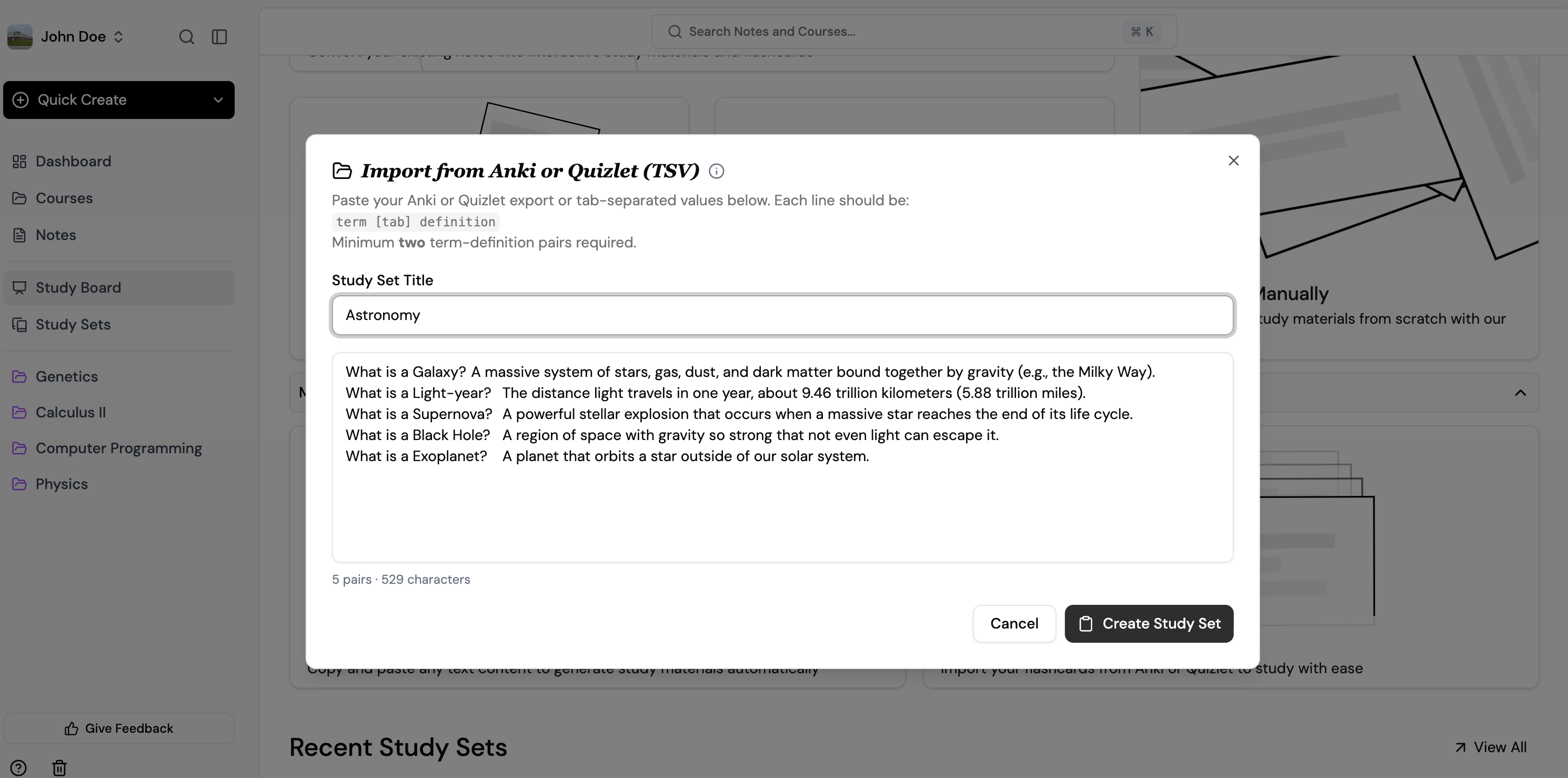
4. Importing TSV Terms & Definitions (Quizlet / Anki)
If you have flashcards from Quizlet, Anki, or other platforms, you can import them into Lurna using a simple TSV file.
What is a TSV?
- TSV stands for Tab-Separated Values
- Each line represents one flashcard
- Term -> tab -> Definition
Example format:
Cell	The basic unit of life
Mitochondria	The powerhouse of the cell
Osmosis	Movement of water across a membrane
How to import:
- Export your deck from Quizlet or Anki as a TSV file
- Open Lurna -> Create Study Set
- Choose Create from Anki/Quizlet
- Copy and paste your terms and definitions
- Review and edit terms before generating a study set
Tips for best results:
- Make sure each line has exactly two columns (term + definition)
- Avoid extra tabs or blank lines
- Keep definitions concise for cleaner cards
Advanced features:
- Combine multiple TSV files into one deck
- Tag cards by unit or chapter after import